

Configure spend and rate limits in the Requesty Console.
Looking for rate limits? Requesty does not limit how many requests you send per minute, it limits how many can be in flight at the same time. See In-Flight Rate Limits. If you hit a rate limit from an upstream provider (HTTP 429), the best solution is to create a Routing Policy that automatically fails over to another model or provider.
Per-API Key Spend Limits
Use this method when: Your team members do NOT have access to the Requesty web platform, and you need to distribute API keys directly.How it works:
- Organization admins generate API keys and share them with users
- Each API key has its own monthly spend cap
- Spending can be monitored via the dashboard or management API endpoints
- This method is ideal for external integrations or when you don’t want to give users platform access
Setting up per-key limits:
- Go to API Keys Page
- Create a new API key or edit an existing one
- Set a monthly spending limit for that specific API key
- Share the API key with the intended user
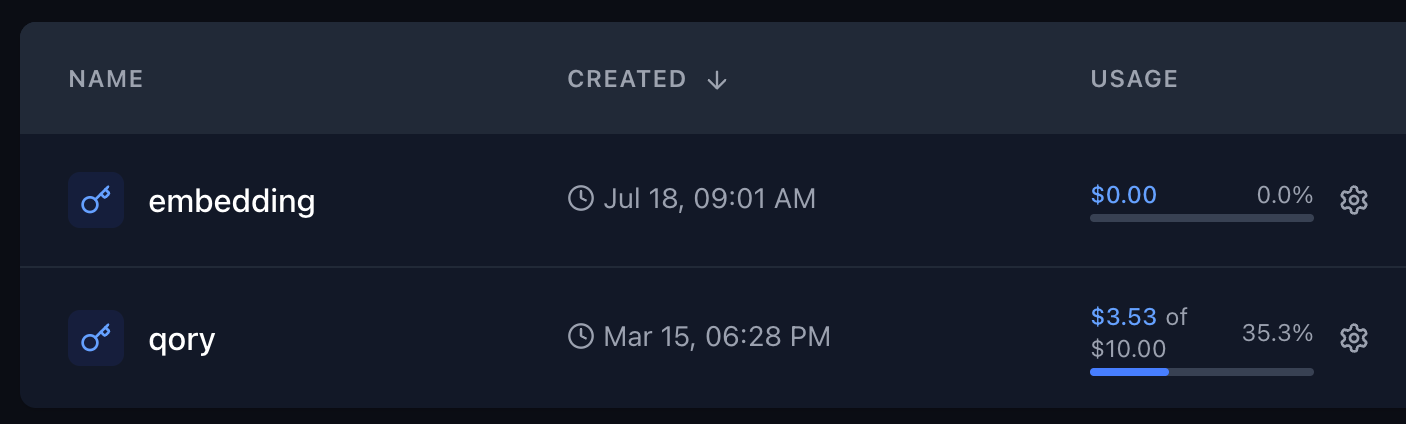
Monitoring and Management
You can:- Monitor spending in real-time through the dashboard
- Receive alerts when limits are approached
- Use the Management API to programmatically check usage
- Adjust limits as needed based on usage patterns
Handling Provider Rate Limits
When an upstream provider (OpenAI, Anthropic, Google, etc.) returns a 429 rate limit error, Requesty can automatically retry with a different model or provider. The solution is to create a Routing Policy.Option 1: Fallback Policy
Create a Fallback Policy that tries the same model on a different provider, or falls back to an alternative model:
If the first model is rate limited, Requesty automatically tries the next one, your application never sees the 429 error.
Option 2: Load Balancing Policy
Spread your traffic across multiple providers to stay under each provider’s rate limits with a Load Balancing Policy:Option 3: Latency Routing
Use Latency-Based Routing to automatically pick the fastest available provider, rate-limited providers will have higher latency and be deprioritized.How to Create a Routing Policy
- Go to Routing Policies in the Requesty dashboard
- Click Create Policy
- Choose your policy type: Fallback, Load Balancing, or Latency
- Give it a name (e.g.,
rate-limit-safe) - Add models, search and select from 300+ models, then drag to reorder
- For fallback: set retry counts per model. For load balancing: set weight percentages (must total 100%)
- Save the policy
policy/your-policy-name:
Best Practices
- For internal teams: Use per-API key or service account limits to give users autonomy while maintaining control
- For external partners: Use per-API key limits for simpler distribution and management
- Set reasonable buffers: Consider setting limits slightly above expected usage to avoid interruptions
- Regular monitoring: Check usage patterns monthly to optimize limit settings
- For rate limits: Create fallback policies across multiple providers to maximize throughput