

Configure approved models in the Requesty Console.
- Compliance. Ensure only vetted models can be called from any API key in your organization.
- Cost control. Keep expensive frontier models out of reach until you have explicitly approved them.
- Curated UX. Members see only approved models when they pick a model in the dashboard or chat playground.
- Predictable routing. Fallback chains and load balancing only consider approved targets.
How the allowlist works
Approved Models is one list of model IDs that lives on the organization. When a request reaches the router, Requesty checks the model against this list and rejects anything that is not on it. If you need finer grained policies for specific teams or workloads, layer Access Lists on top. The resolution order is:- If the API key has an access list, use it.
- Otherwise, if any group the key belongs to has an access list, use the union of those lists.
- Otherwise, use the organization Approved Models list.
- If the organization has not configured Approved Models, every model in the Requesty catalog is allowed.
Managing the list from the Admin Panel
Everything for Approved Models lives in Admin Panel > Approved Models.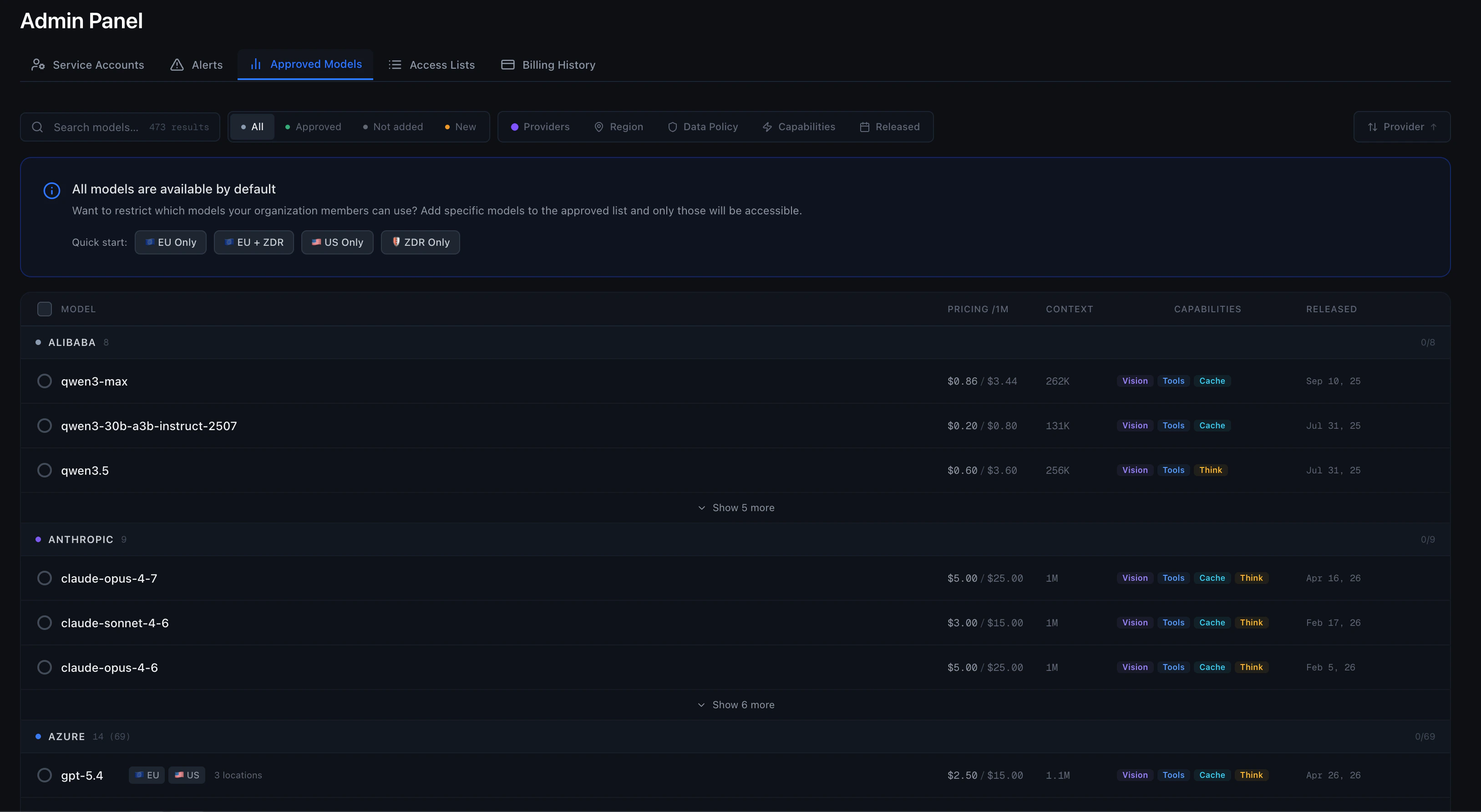
Default state and quick starts
If nothing is configured, the banner at the top reads All models are available by default and every model in the Requesty catalog can be used. The same banner exposes one click presets for the most common policies.
Filter and approve
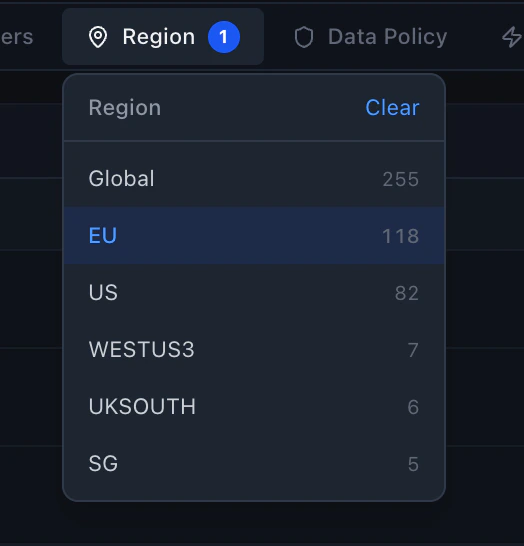
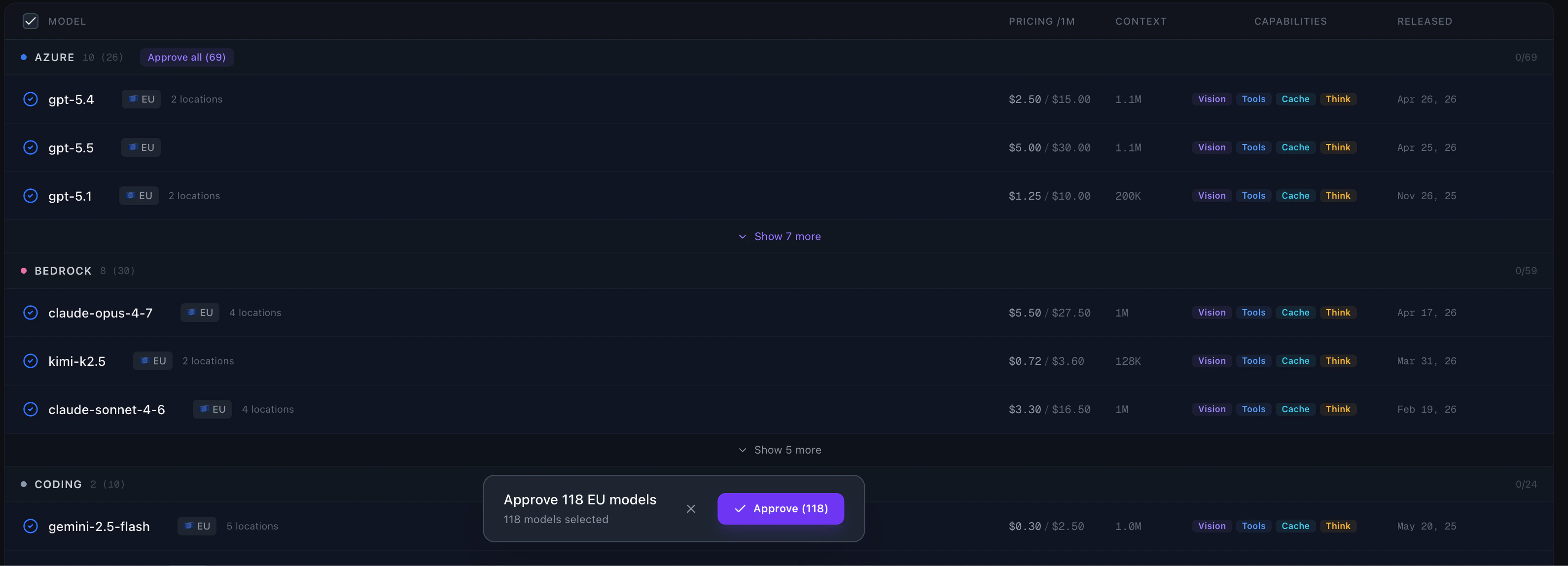
Use the status chips (All, Approved, Not added, New) together with the Providers, Region, Data Policy, Capabilities, and Released filters to narrow the catalog to the models you want.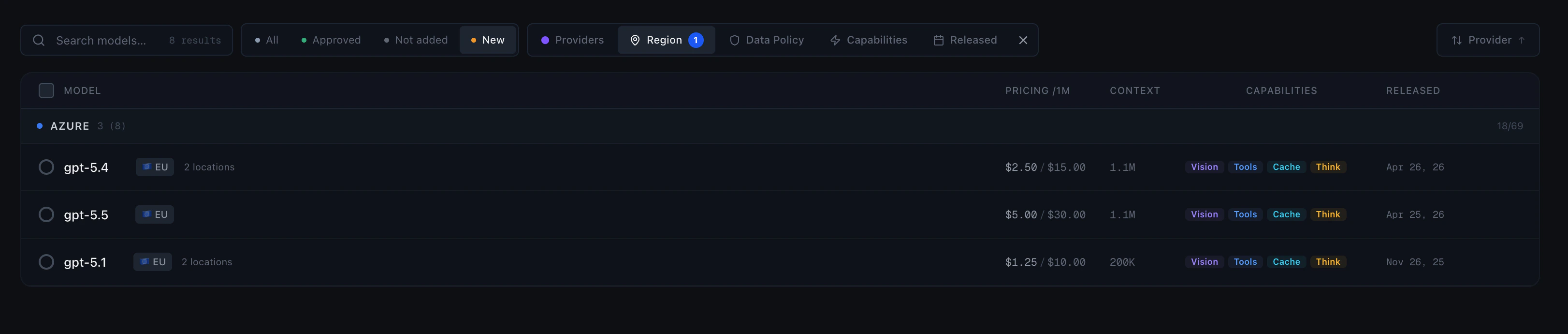

What members see
- The Model Library and the Chat playground hide non approved models by default. Members can flip a toggle to preview the full catalog, but they cannot select a non approved model in a request.
- Routing policies (fallback, load balancing, latency) only let you pick from the approved set.
GET /v1/modelsreturns only the models the calling API key is allowed to use. If the key has an access list, only those models are returned. Otherwise the response falls back to the group list, then to the organization approved set. Tools that call this endpoint (Open WebUI, Claude Code, GitHub Copilot, Cursor, and others) will automatically show only the allowed models.
Managing the list with the Management API
You can read and replace the approved models from code with a Management API key.GET /v1/manage/org/approved-modelreturns the approved models asprovider/modelnames, grouped intochat,embedding,image,transcription,speech, anddecision. Every modality empty means no allowlist is configured.POST /v1/manage/org/approved-modelreplaces the whole list. Any modality you omit is cleared, so send every modality you want to keep. Entries can beprovider/modelnames or model IDs.
400 if it would remove a model that one of your access lists uses; update the access list first. Send every modality empty to remove the allowlist and allow every model.
Combining with groups and API keys
Approved Models is the floor that every other layer narrows. Some example shapes:- Broad org, strict prod. Approve all the providers your team is allowed to evaluate (say 50 models). Create an access list called Production with just two of them and attach it to your production API keys. Internal experimentation keys still see the full 50.
- Region scoped team. Approve every EU model in Approved Models. Create an EU only access list with the subset that you guarantee for an EU customer and attach it to that customer’s group. Members of other groups still see the full approved set.
- One agent, one model. Approve a generous set at the org level for humans. For an autonomous agent, attach a one model access list directly to its API key. The agent cannot escape to anything else even if its code changes.
Best practices
Cover all modalities
When approving models, remember to include models from every modality your organization uses: chat, embeddings, images, audio, and decision models. Approving only chat models will block all other modalities.
Start broad, narrow later
Approve everything you trust at the org level, then express stricter rules through access lists. This keeps the dashboard usable for everyone while still giving you tight control over production keys.
Review on every model release
When a new model lands in the Requesty catalog it is not approved by default. Review and approve it the same week it ships so your teams stay current.
Tag your access lists
Use clear names for access lists (for example, Production, EU only, Cheap fallbacks) so anyone debugging a 403 from the router can find the policy that blocked a request.
Audit what is in use
Use Usage Analytics to see which approved models are actually being called. Remove anything that has been unused for months.
Related
- Access Lists: reusable, named allowlists you attach to groups and API keys.
- Groups: how to organize members and keys into teams that share an access list.
- Fallback Policies: only approved models can be used as fallback targets.